


Find attachments Outlook is a daunting task sometimes because you never know which mail has it. Outlook has options to find it and we made it very simple for you just follow these steps:-
- Open Outlook and navigate to the folder where you think your attachments are (e.g., Inbox, Sent Items, etc).
- Search for emails with an attachments option in the search bar menu at the top of Outlook. You can enter specific keywords or phrases related to the attachment you are looking for.
- After that search results will appear in Outlook display with a list of emails that match your search. Find emails with paperclip icons next to them, indicating that they have attachments.
- View the email by clicking on it. You will see the attachment in the email preview pane or double-click on it to open it in a separate window.
- Now save the attachment if you found it on your computer, just right-click on the attachment and select the “Save As” option to choose a location to save the attachment file.
- If you haven’t found your desirable attachments in Outlook here, you can try another feature of Outlook “Advanced Find” feature by clicking on the search bar and selecting “Search Tools” > “Advanced Find” to find large attachments Outlook.
Tricks to Find Attachments Outlook Thread For The Next Time
1. Search Bar Utilization
In the search bar, you can quickly search for specific emails or attachments. It is a very useful tool To find attachments, simply enter keywords related to the attachment you are looking for in the search bar at the top of the window. You can also use specific file types (e.g., .pdf, .docx) as search criteria to narrow down your results.
2. Look for Paperclip Icons
Find the Emails with attachments in Outlook which usually appear with a paperclip icon next to the email subject because that indicates attachments have on it. When scanning through your inbox or other folders, keep an eye out for emails with paperclip icons, as these are likely to contain attachments.
3. Attachment Filter Options
Filter the emails consisting of attachments in Outlook. Do this with these steps simply, go to the folder you want to find in (e.g., Inbox, Sent Items) and click on the “Filter Email” option to find all attachments in Outlook. Now drop-down menu, select “Has Attachments” to display an option that will show only emails that have attachments.
4. Advanced Search Options for Deep Search
Sometimes you may not find the right attachments that you are looking for. To do an advanced search just click on the search bar and select “Search Tools” > “Advanced Find” to specify your search criteria. Here you can specify the sender, subject, date range, and other parameters to align your search results and locate the attachment you desired.
5. Save Attachments From the Outlook
Easy option for the future is to save attachments to your computer by right-clicking on the attachment and selecting “Save As”. and don’t forget to choose a location on your computer to save the file, and it will be downloaded for offline access permanently.
Don’t Need to Find Attachments Outlook Once You Saved It
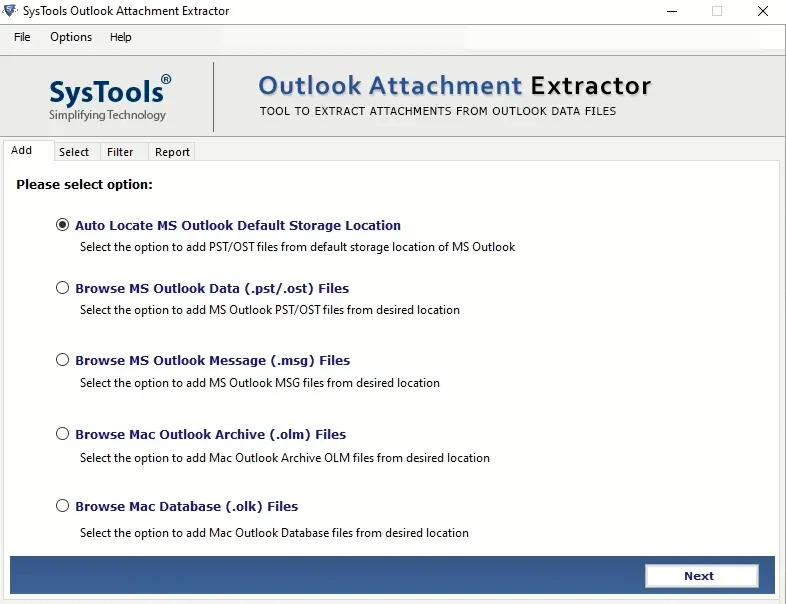
Save attachments with this automated Revove PST attachment extractor software to save attachments from Outlook. Tailored all your attachments with its impressive conversion. It can simply download PST, OST, and BAK file attachments from multiple emails at once and find attachments in the Outlook calendar. See it’s more handful features below:
- Download bulk attachments from Outlook MSG data file
- Extract inline images from attachments
- Options to download PST and OST files from Outlook profiles
- Naming convention feature to find attachments in a folder
- Maintain folders after conversion
- Look out for attachments with the date filter option
- Running in Outlook and all Windows versions explicitly
- Supported OLM format in Mac.
Follow These Steps to extract attachments from multiple emails outlook
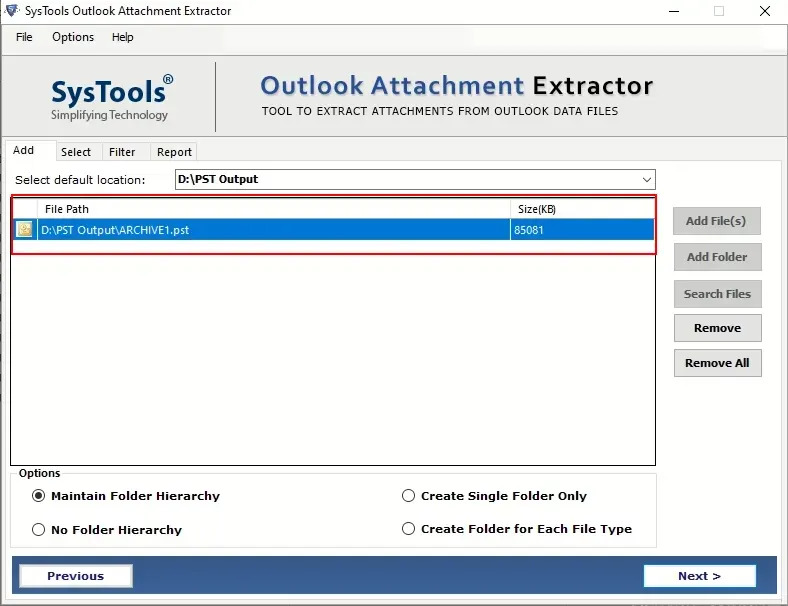
- Run the program, and select the Default Storage Location Auto Locate option.
- Select the destination for saving the attachment.
- Now in the next wizard, the select option includes date filtering, naming standards, and the ability to extract attachments from certain data items.
- These options will make it easier to find attachments from emails in Outlook.
- Now, apply all of the advanced settings by only clicking the Extract button.
- Finally, check the extracted attachments will be stored in the specified folder directory.

Final Answer
Use this guide to master tricks to find attachments to Outlook and following these tips, you never lose your attachment’s location in the future. Attachments take up lots of storage in your Outlook so declutter it or save it for effective use is a good option. You need to manage your attachments which are identified by you and create a mess for disrupting Outlook functions. We have shared two methods one is manual and the second is automatic to fix this problem and list the best prevention for the next time.