


PDF files often contain important or personal information. This could be office documents, contracts, bank details, school certificates, or even private notes. If a PDF is shared without protection, anyone who gets access to it can open and read it.
That’s why many people ask questions like how to password protect a PDF, or how to keep their files safe before sharing them. The good news is that protecting a PDF with a password in Windows 11 is not difficult at all. You just need the right method.
In this guide, we’ll walk through simple ways to protect PDFs and then talk about a reliable tool that makes the whole process easy, without making it sound complicated or technical.
Why Should You Protect a PDF with a Password?
Before we get into the “how,” let’s talk about the “why.”
When you protect a PDF with a password, you:
- Stop unauthorized access
- Keep private information safe
- Control who can open or edit the file
- Feel more confident while sharing documents
This is especially useful when you’re sending files by email, WhatsApp, or cloud storage.
How to Protect PDF File with Password in General
On Windows 11, there is no built-in option to password-protect PDFs. This means you usually need a third-party tool or an online service.
Common Ways People Protect PDFs
- Using desktop PDF software
- Using online tools (browser-based)
- Using professional PDF editors with security options
Let’s look at these briefly.
PDF Password Protect Online – Is It a Good Idea?
Many people search for PDF password protect online tools because they’re quick and don’t require installation.
Pros
- Easy to use
- Works in any browser
- No software installation
Cons
- Uploading sensitive files to the internet
- File size limits
- Some tools add watermarks
- Limited control over security
Online tools are fine for basic or non-confidential PDFs. But for work documents, contracts, or personal files, many people prefer offline solutions.
Desktop Tools: A Safer Option for Windows 11 Users
Desktop PDF tools work directly on your computer. Your files do not go to a server or website, which makes them more secure.
This is where tools like Systweak PDF Editor come in.
Instead of being complicated or heavy, it’s designed for everyday users who just want things to work without confusion.
How Systweak PDF Editor Helps Protect PDFs Easily
Systweak PDF Editor allows you to protect PDF files with a password in just a few steps. You don’t need technical knowledge or experience with PDF tools.
What makes it especially helpful is that it offers both basic and advanced password protection options.
What You Can Do with Password Protection
- Set a password to open the PDF
- Restrict editing, copying, or printing
- Apply advanced security for sensitive files
- Keep formatting and content unchanged
This makes it suitable for both personal use and professional documents.
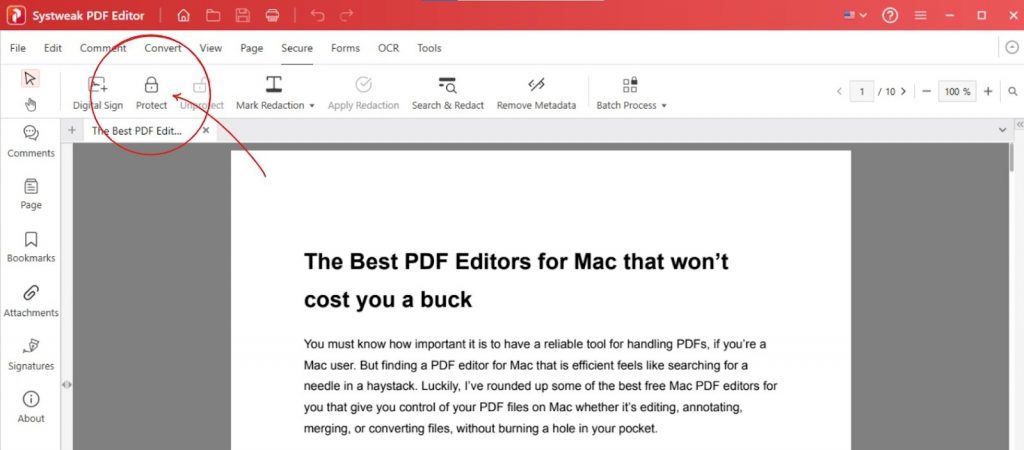
How to Password Protect a PDF Using Systweak PDF Editor
Here’s how easy it is:
- Open the PDF in Systweak PDF Editor
- Go to the security or protection option
- Choose protect PDF with password
- Set your password (and permissions if needed)
- Save the PDF
That’s it. Your PDF is now protected and can only be opened by someone who knows the password.
This simple flow answers a very common question: how to protect PDF files with password without stress or confusion.
Advanced Password Protection – When You Need Extra Security
Not all PDFs need the same level of protection. Some documents require extra safety.
Advanced protection lets you:
- Allow viewing but block editing
- Disable copy-paste
- Restrict printing
- Control document permissions
Systweak PDF Editor offers these advanced options without making the process feel complex, which is helpful if you’re dealing with official or confidential files.
Things to Keep in Mind When Setting a PDF Password
- Choose a password you won’t forget
- Avoid very common passwords
- Save a backup copy without a password (if needed)
- Share passwords securely
Once a password is set, removing it later usually requires the same tool.
Final Thoughts
Learning how to password protect a PDF is an important step toward keeping your files safe. Whether it’s personal documents or work-related files, password protection gives you peace of mind.
While PDF password protected online tools may work for quick tasks, desktop tools are generally more reliable and secure. Tools like Systweak PDF Editor make it easy to protect PDF with password, offering both simple and advanced security options without complicated steps.