


Outline: If you are tired of removing similar video files on your macOS? Then, this write-up is for you on “how to remove duplicate MP4 Files on Mac.”
MP4 files whether informative, motivational, instructional, or cinematic, have become a crucial part of our lives, especially those entertaining clips. We often create a folder to store our favorite MP4 files, but in doing so, we unintentionally download duplicate files, creating a cluttered collection.
Searching for a specific movie file amidst the chaos can pose a challenge. To tackle this issue, consider the following solutions. This guide thoroughly covers both manual (free) and professional (quick) methods, offering options to effectively organize your video files. Additionally, to eliminate duplicate files in other video formats, follow the steps outlined in this comprehensive guide on “How to delete duplicate videos on macOS?”
Aftermath if You Don’t Delete Duplicate MP4 Files on Mac?
Having multiple identical MP4 files on your Mac can noticeably slow down your system, making it less efficient. This choice brings various consequences, as outlined below. Consider the impact on your macOS performance.
- Firstly, it takes up precious storage space.
- Secondly, it causes chaos, cluttering your files.
- Additionally, it needlessly inflates backup sizes.
- Finding original clips becomes challenging amid the copies.
- Moreover, if a system fails, recovering data becomes tangled due to duplicates.
- Next, Searching for a particular MP4 file could take longer time than expected.
- There’s also a higher risk of accidentally deleting important files when managed manually.
- To address this, consider using duplicate management tools for efficient deletion.
- Regular maintenance, involving periodic cleanups, helps maintain an organized file system.
How to Find and Remove Identical MP4 Files on macOS through Finder?
Explore a technique to remove duplicate video clips using the Finder app:
- Initiate Finder, find MP4 files in Applications.
- In the video folder, opt for the “List” view, sorting by name or size.
- Manually spot duplicates, focusing on matching names or sizes.
- Select duplicates with the Command key, right-click, and “Move to Trash” to delete.
How to Scan and Get Rid of Duplicate MP4 Files on macOS through Terminal?
This segment outlines the technical steps to find and delete identical MP4 files from the media library. Prior knowledge of basic Terminal app commands is necessary. Now, let’s delve into the process.
To start the process, open the Terminal by going to Applications → Utilities → Terminal.
Next, reach the video directory using ‘cd’ (e.g., cd /path/to/video/folder).
Identify duplicates by executing the command:
find . -type f -exec md5 {} \; | sort | uniq -w32 -d –all-repeated=separate
Manually delete duplicates using ‘rm’ (e.g., rm /path/to/duplicate/video).
Important points to note:
- Always take a backup of your files before deletion to prevent accidental loss.
- Exercise caution, as Terminal commands can permanently remove files.
How to Scan and Eliminate Similar MP4 Files on Mac with Photos App?
Users aren’t big fans of this method in the Photos App, mainly designed for images. However, it’s surprisingly versatile for handling videos. Let’s dive in:
Start with Photos
Begin by opening your Mac’s “Photos” app.
Incorporate MP4 Files
Drag and drop MP4 files or use “Import” if they’re not already in the Photos library.
Create a Smart Album
Navigate to “File” in the menu and select “New Smart Album.”
Set Criteria
Define criteria like File Name or Date to pinpoint duplicates effectively.
Check the Smart Album
Analyze your library by matching MP4 files to spot any duplicates.
Eliminate Duplicate MP4 Files
Select duplicates within the Smart Album, hit “Delete,” and confirm.
Clear Recently Deleted
Deleted MP4 files end up in “Recently Deleted.” For a permanent removal, head there, select MP4 files, and click “Delete All” or “Recover.”
Cons of the Manual Solutions to Remove Duplicate MP4 Files
Users often face challenges when deleting duplicate MP4 files. Here are some issues:
Processing Strain:
- Identifying and deleting files strains computing power, causing delays.
Data Loss Risks:
- Easily available solutions elevate the risk of data loss.
Storage Optimization Oversight:
- Manual deletion may overlook storage optimization opportunities.
Scaling Issues:
- Accessible methods become impractical with expanding datasets.
Naming Impact:
- Similar file names have a significant impact on accuracy.
Adjustment Challenges:
- Complimentary deduplication requires frequent adjustments.
Risk Exposure:
- Manual processes expose sensitive information, posing risks.
Legitimacy Identification:
- Another challenging task is to find the legitimate versions among the duplicate files.
Regulatory Compliance:
- Meeting regulations becomes difficult without automated solutions.
Flexibility Limitation:
- Existing processes lack flexibility for deduplication criteria.
How to Remove Duplicate MP4 files on macOS? – An Ideal Path
In this process, though it’s free, some downsides appear. Yet, picking SysTools’ straightforward video finder for Mac Big Sur, Ventura, Sonoma, and all versions tackles these issues. Additionally, it swiftly removes extra files with just a few clicks. It’s designed to meet daily user needs and expectations. Check out the features of the tool for better assessment:
- Smart file scanning with a recognition engine.
- Additionally, a recursive scanning option is available.
- Users can easily move or delete duplicate video files.
- The tool scans 70+ file extensions (e.g., .mp3, .mp4, .png, .jpg) and can detect visually identical images.
- Importantly, user data is preserved during scanning.
- Give the free trial version a try.
Given below are the salient steps to detect and eliminate duplicate MP4 files on your Mac:
- Begin by downloading and installing the Duplicate Video Finder Tool.
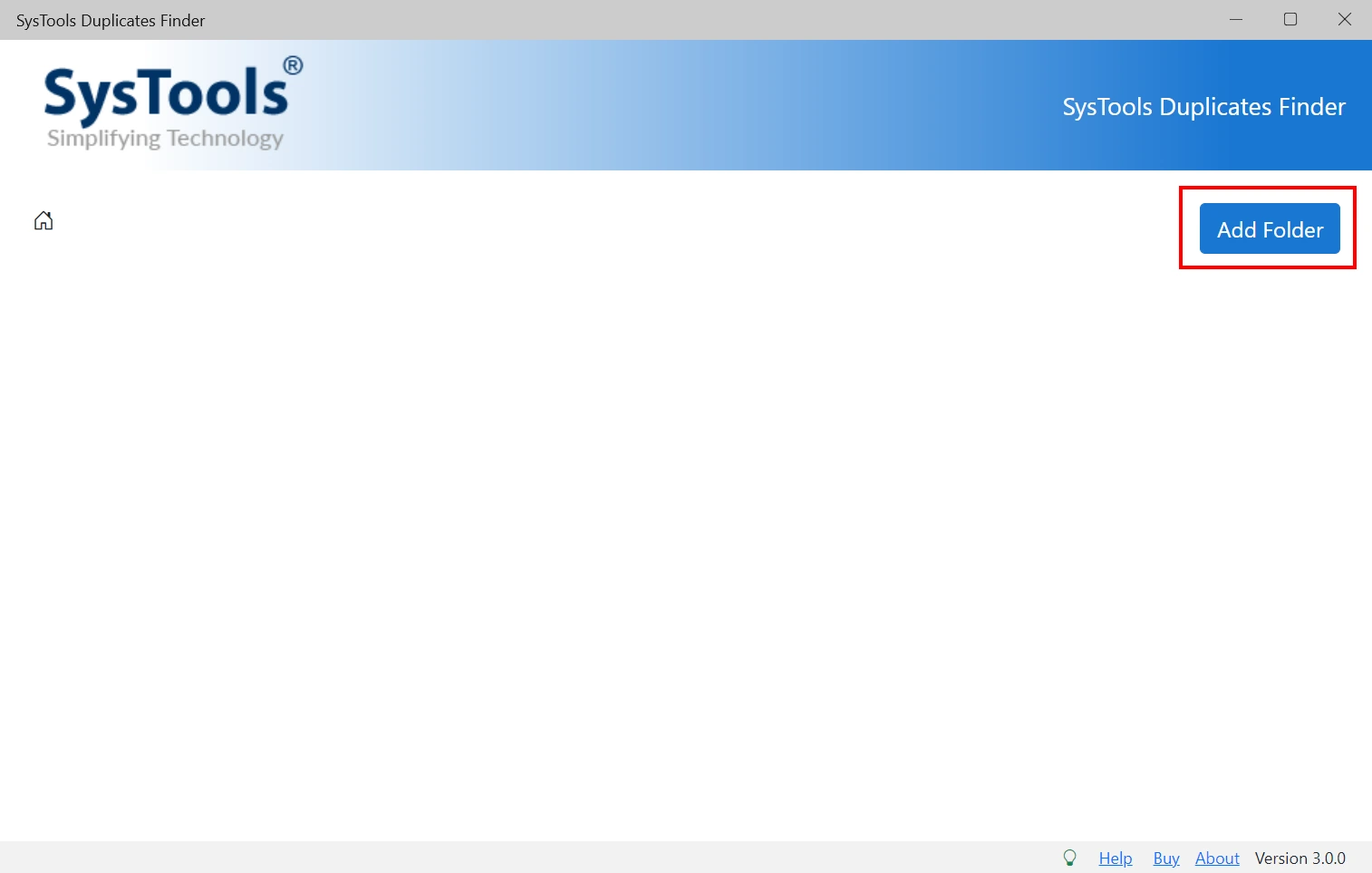
- Next, select your target folder by clicking “Add Folder.”

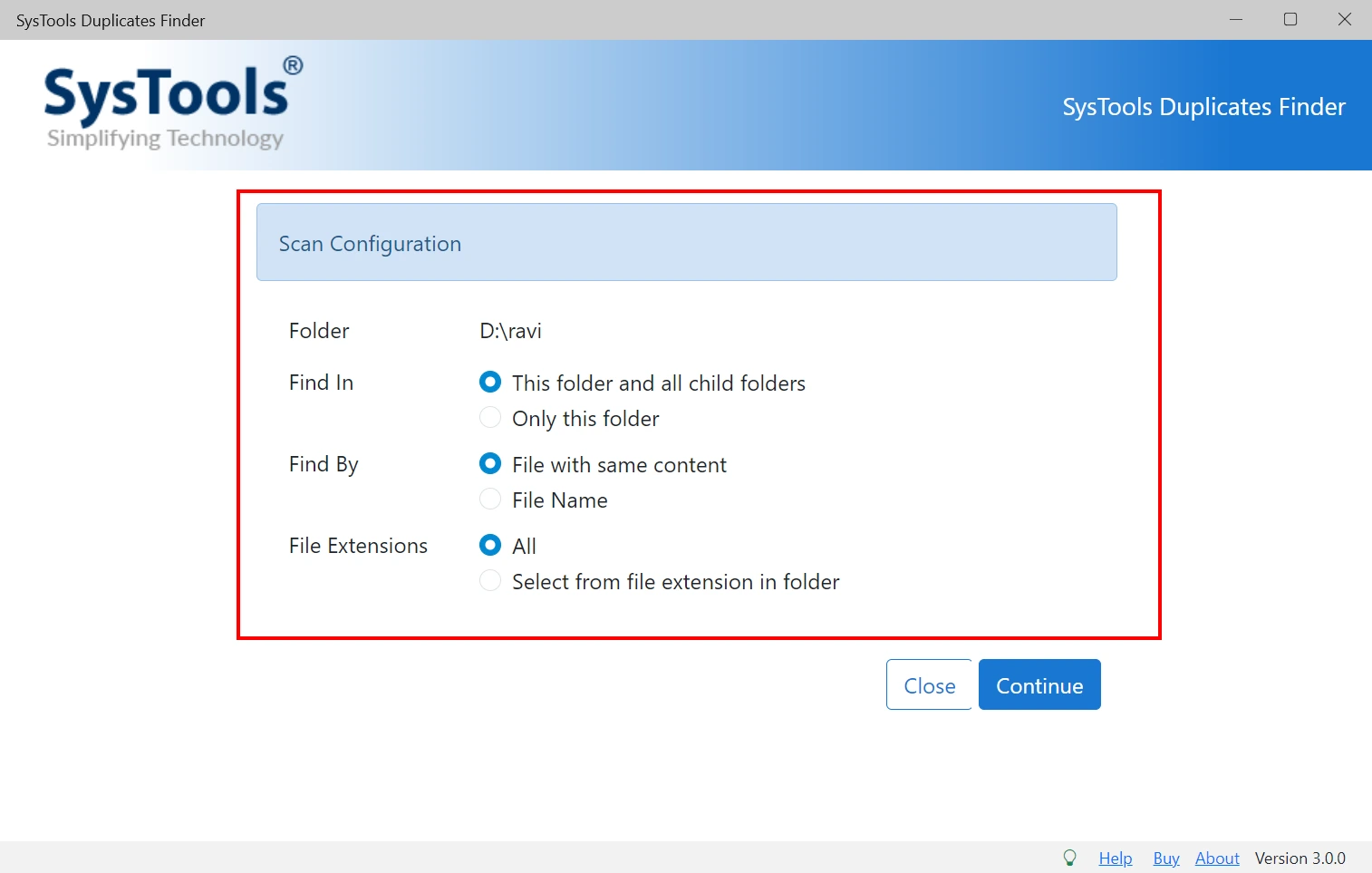
- After that, in the appearing box, pick your desired scan settings, including file types such as MP4, AVI, etc. Click “Continue” to proceed.
- Execute the elimination process by clicking “Delete.”
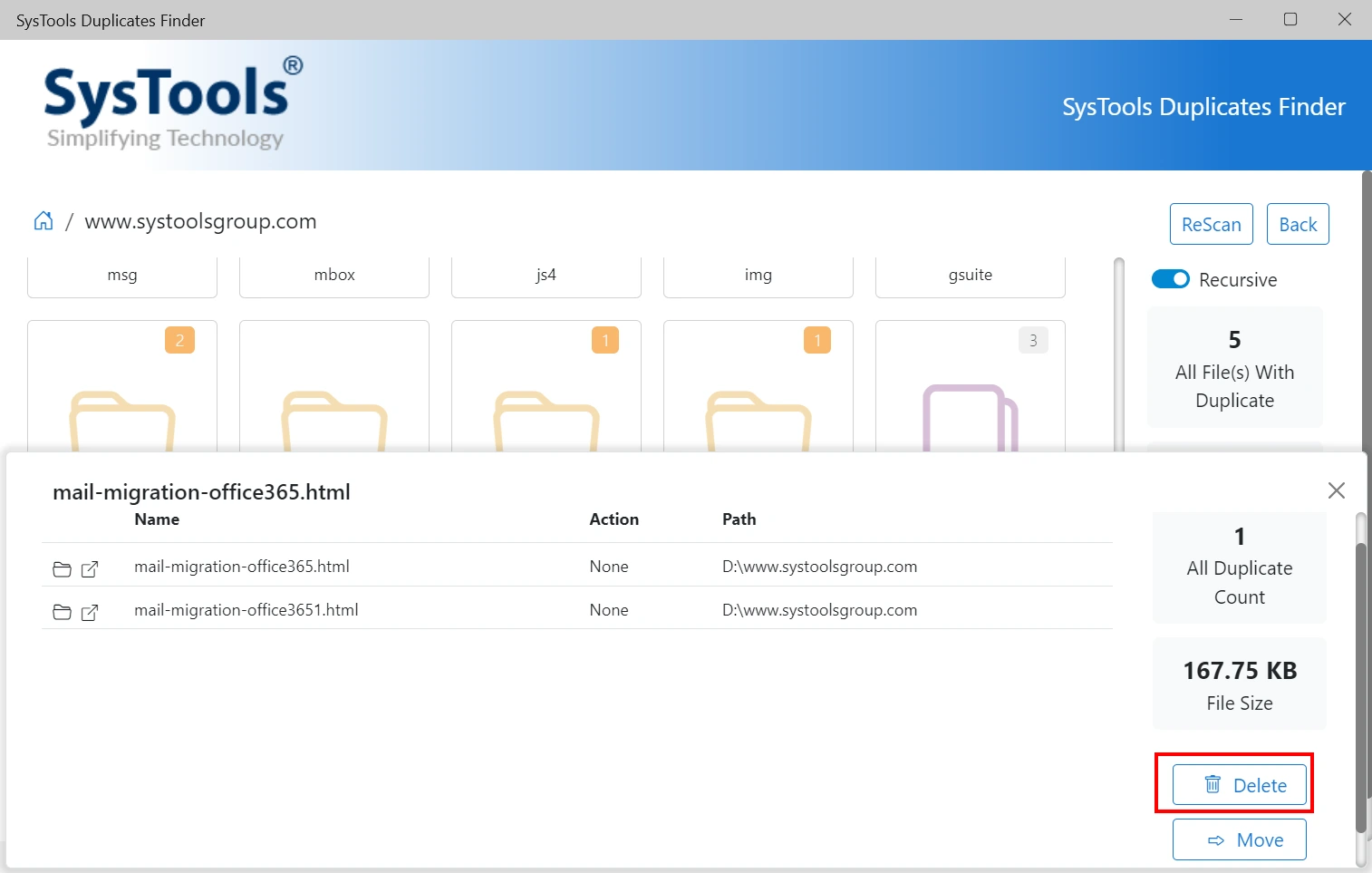
- Once completed, inspect the Action tag for items marked as “Deleted.”
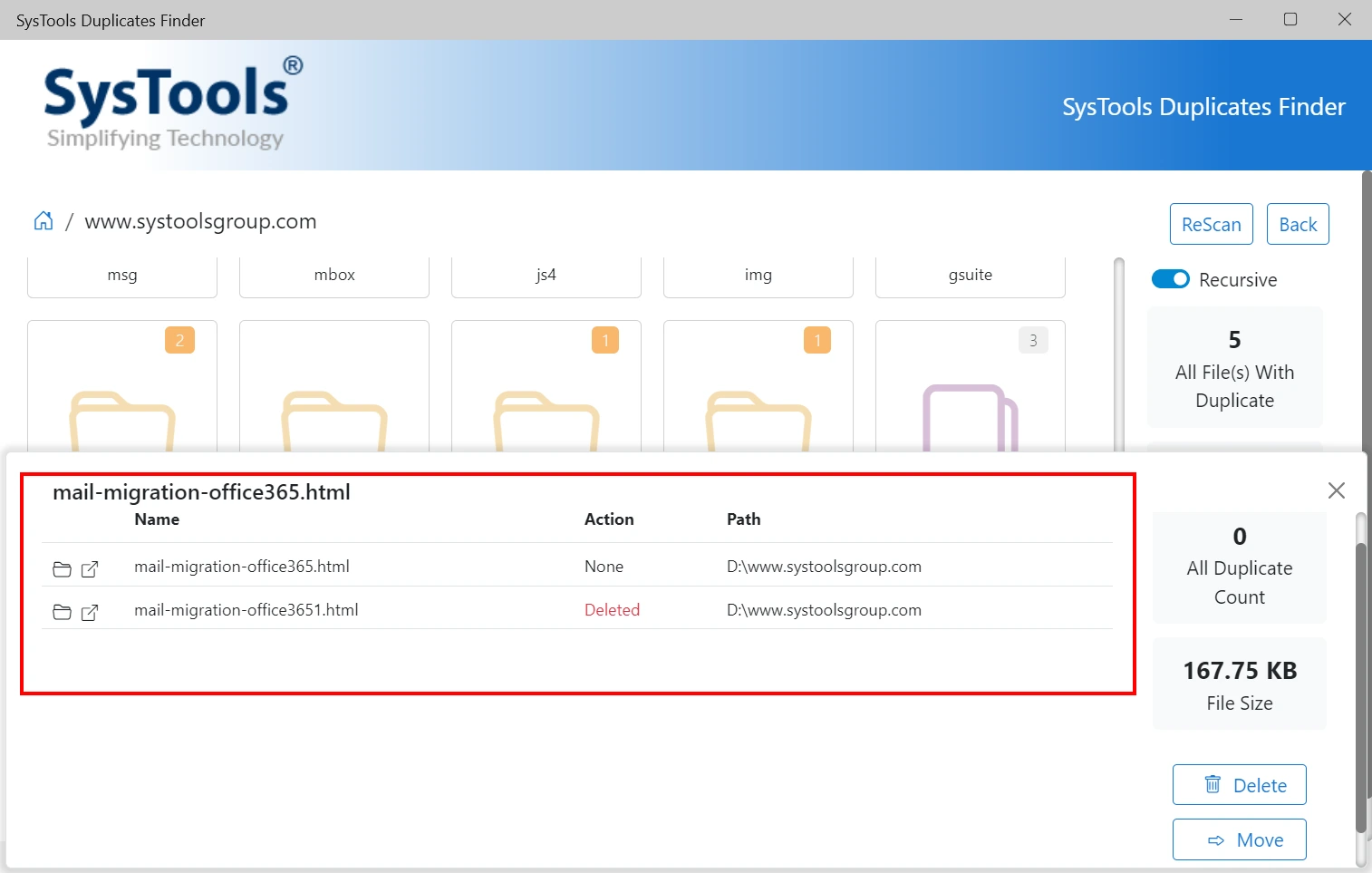
This ensures a clean and efficient removal of duplicate video files from your system.
Final Takeaway
In this blog, we’ve discussed the process of eliminating duplicate MP4 files on Mac OS. Firstly, we explore manual and advanced techniques to remove similar video clips on macOS Ventura and earlier versions. Despite being cost-free, manual methods sometimes lack reliability. Therefore, we suggest choosing a specific application designed for deleting repetitive videos.