



Nexus, currently in beta, lets you use the full Windows versions of Microsoft Office 2010 programs on your Chromebook. This “app” from the Chrome Web Store is actually a platform that lets you run software on any device with a web browser. Unlike a remote desktop app, it doesn’t need any client software. You also don’t need the software installed on another remote machine.
In this review, I’ll take a look at the experience of running InstallFree Nexus on a Chromebook.
Review Note: This app has a 60-day period during which it’s free to use. After that, For a completely free way to run Microsoft Office applications on any Chromebook, please see our detailed hands-on review of Microsoft’s own MS Office Web Apps
Once you’ve added it to Chrome, clicking on the app icon takes you to the InstallFree Nexus server. You can sign into Nexus using your Google/Chromebook account, SkyDrive, or Dropbox account. I’m always partial to things that don’t require me to sign up, activate, and keep track of yet another user account and password. Especially for the purpose of these Chrome app reviews, it makes it easy to try out a lot of new services rather quickly. This particular app (well, platform) is one I’ll definitely keep integrated on my Chromebook, however.
Video from InstallFree Nexus:
InstallFree Nexus can be natively integrated with your existing Dropbox (the best free cloud storage I’ve personally come across) account. Like the official Microsoft Office Web Apps for Chromebook, you can also open and save files from your free Skydrive cloud storage account. This level of cloud storage integration makes it absolutely perfect for Chromebook users.
One thing I found really interesting and cool about this app is that it uses a proprietary virtual file management system. What that essentially means is that when you are using Microsoft Office, it sees your cloud storage accounts just like they were connected hard drives. In the language of the InstallFree Nexus developers, MS Office 2010 doesn’t even know it’s working in the cloud because of this virtual file system. Nor, do we suppose, that Microsoft Office 2010 knows what a Chromebook is, let alone that it’s being seamlessly run on one.
For those interested, the file management interface looks a lot like the “classic” blue and grey Windows 9x file manager, but with easy access to your connected cloud storage drives. I’ll say, it’s a bit trippy to see a completely functional Windows-style file explorer window on a Chromebook, but a good trippy. I am wanting to use Microsoft Office here, after all.

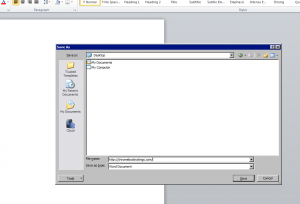
In addition, you can customize your program preferences in Microsoft Office just like you can with a “hard” (well… “soft” I suppose) installation on a PC. This seems like something that many people would take for granted, but it’s kind of an important feature. It means you’ll be entering your cozy, familiar “installation” of Office every time you load up one of the programs, rather than a blank, faceless installation with all the default settings that can potentially cause quite a bit of annoyance for experienced Office users.
What is the experience of using the app after this point? Well… it’s Microsoft Office. It looks, acts… it “is” Microsoft Office. Word, Excel, Powerpoint (and Notepad++) are all there at your disposal, and yes, you can run them all simultaneously. You just use the InstallFree Nexus interface to select one or more of the Office programs, and after a very short loading screen, the program opens up in the browser (if the Chrome browser window border bugs you, you can run any of the Office apps in full screen).
If you’re specifically interested in running Office on your Chromebook rather than the pretty equivalent Google Docs or similar productivity apps, you probably already have a fair idea of what using the actual Microsoft Office is like. Suffice it to say (well… repeat) that this service/app/platform gives you access to the native, full, Windows versions of Microsoft Office 2010 without requiring any kind of installation (unless you count clicking the “Add to Chrome” button on your Chromebook).





As the screenshots show, you can run the app in full-screen mode on your Chromebook. This keeps the browser window out of your way and helps you stay productive.
The InstallFree Nexus interface is very minimalist. It includes the Office app options, cloud-drive access, and a few essential settings. This simple layout is a good thing. It resembles the clean iOS 5-style design, which suits an app meant to provide unobstructed access to other tools.
Because this is a beta, the app has a few small quirks. In my case, the caps lock state was reversed. Clicking outside the app and then returning fixed it immediately. The app also ran slowly a few times. It felt like an old Windows PC where typed letters appear all at once after a delay. This may be due to heavy server load from many testers. These minor issues will likely be fixed before the final release. Since this is a beta, I am not deducting any points for them.
During testing, I also found the Clipart folder in PowerPoint was empty. I had to choose my own images instead. I rarely use Clipart anyway, and I only noticed this because I tested every button. The missing Clipart may be due to licensing. Either way, it’s not a major issue.
As you can tell, I strongly recommend trying InstallFree Nexus if you love your Chromebook but still need Microsoft Office. The current beta gives you two months of free access, which is enough time to evaluate it. You may be able to use an existing Office license in the future. There’s also no need to create a new account, since the service supports multiple sign-in options. Additionally, you can log in using Google, Dropbox, or SkyDrive.
The verdict? Give it a try! You can find InstallFree Nexus for free in the Chrome App Store on your Chromebook. The app also supports many devices, so syncing your files across your computer and mobile gear is simple.
For using Office apps like Word, Excel, and PowerPoint on a Chromebook, you can try Microsoft’s Chrome app. You can also use Microsoft Office Web Apps. They offer many of the same features but the interface is different, which may confuse some users. Another option is Google Docs. It provides close equivalents to many Office tools on the Chromebook.