


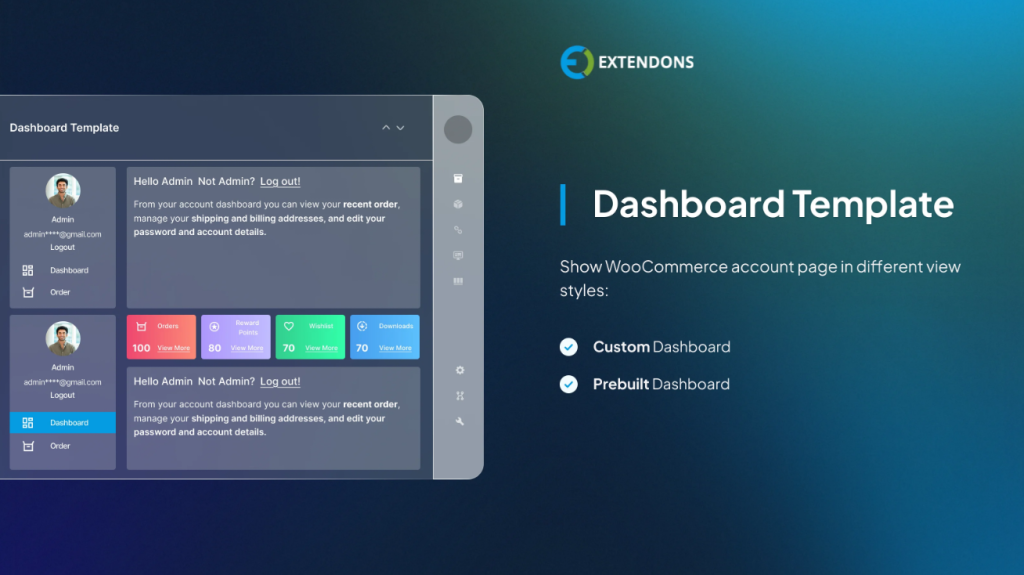
Your customers can manage their orders, downloads, addresses, and also other account details with the help of the WooCommerce My Account page plugin, and it is super easy. Although WooCommerce offers the same account interface to all users by default, it is a “one size fits all” approach, and it won’t necessarily help you when it comes to various vendors, wholesalers, or affiliates. If you want an account page that is fully optimized according to user roles without needing a developer or writing any code, you can just go for this plugin. But for that, we will first walk you through the whole process of creating role-based dashboards. You will be able to provide users with an experience based on every individual according to their role.
Customizing the WooCommerce My Account Page by Roles
Not all users interact with your store in the same way. A regular customer might need easy access to orders and downloads, while a vendor might look for sales stats or product management links. Using the same dashboard for all roles can confuse users and clutter their experience.
Customizing the WooCommerce My Account page by role helps you:
- Show the right options to the right people.
- Keep the dashboard clean and relevant for each user role.
- Improve user navigation, satisfaction, and retention.
- Promote key content or tools to specific user types.
Whether you run a membership site, a B2B wholesale store, or a multi-vendor marketplace, role-based customization is crucial to providing a professional and personalized user experience.
The No-Code Plugin That Makes It Easy
To customize the WooCommerce My Account page without code, you can use the Customize Account Page & User Dashboard for WooCommerce plugin by Extendons. This powerful plugin lets you fully control the account dashboard layout and content using a visual editor.
With this plugin, you can:
- Add unlimited custom tabs or menu items.
- Show or hide tabs for specific user roles.
- Add WooCommerce endpoints, custom content, or external links.
- Rearrange tabs with drag-and-drop ease.
- Display content using shortcodes, text, videos, or images.
You don’t need technical knowledge to use the plugin it’s designed for store owners and admins who want more control over the user experience without hiring a developer.
Step-by-Step: How to Create Role-Based Dashboards
Here’s how to use the plugin to create fully customized, role-specific dashboards for the Customize My Account for WooCommerce.
Step 1: Install and Activate the Plugin
Start by installing the WooCommerce My Account page plugin:
- Go to your WordPress dashboard.
- Go to your plugins > Add New > Upload Plugin.
- Upload the plugin ZIP file and click Install Now.
- Activate the plugin and go to WooCommerce > Account Page Customizer.
The plugin interface will now be available, allowing you to start building your role-based dashboard.
Step 2: Add Custom Menu Tabs
Click on “add new menu item” to create new sections on the WooCommerce My Account page.
- Name each tab (e.g., “Vendor Portal,” “Member Downloads,” or “Support”).
- Choose the tab type: WooCommerce endpoint, custom content, or URL.
- Add content using the WYSIWYG editor. You can use:
- Text descriptions and titles.
- Embedded videos or images.
- Shortcodes from third-party plugins (LMS, forms, etc.).
- Internal or external links.
You can personalize your dashboard with the exact information or tools that it requires through this.
Step 3: Set Role-Based Visibility
Each menu tab you create can be restricted to specific user roles.
- Scroll to the Visibility Settings area when editing a tab.
- Select the user roles who should see this tab.
- Leave roles unchecked if the tab should be hidden from them.
You can make a “Vendor Dashboard” tab visible only to users who play the role of a vendor. On the other hand, tabs like “downloads” or “wishlists” will remain visible to all customers.
Step 4: Organize Menu Items
With multiple tabs added, it’s important to organize them logically:
- Use the plugin’s drag-and-drop interface to reorder items.
- Group related tabs together based on the user journey.
- Prioritize high-value actions or links by placing them at the top.
Step 5: Test the Dashboard Experience
To ensure everything works as expected:
- Log in as a user with each role (or use a role-switching plugin).
- Navigate to the WooCommerce My Account page.
- Verify that the appropriate tabs are visible and functioning.
- Test any shortcodes, links, or embedded content inside the tabs.
This final check guarantees your custom dashboards are clean, functional, and relevant to every role.
Examples of Role-Based Dashboards
Here are a few practical ways to apply this plugin based on common WooCommerce setups:
For Membership Sites:
- Show exclusive tabs like “My Membership Benefits,” “Bonus Content,” or “Cancel Subscription.”
- Restrict these tabs to logged-in members only.
- Display content from LMS plugins or video platforms via shortcode.
For Wholesale Stores:
- Add a “Bulk Order Form” tab visible only to wholesale customers.
- Link to special pricing charts or documents.
- Hide retail-oriented tabs like coupons or reward points.
For Multi-Vendor Marketplaces:
- Add a “Vendor Dashboard” tab linking to Dokan or WCFM vendor panels.
- Provide vendor training videos or policy documents.
- Show earnings or product links only to vendor roles.
For eLearning Platforms:
- Display a “My Courses” tab using LMS plugin shortcodes.
- Show “Certificates” and “Assignments” tabs only to enrolled students.
- Hide billing tabs for free users or trial members.
Benefits of Using This Plugin for My Account Customization
Unlike custom development, this plugin offers a fast, flexible, and cost-effective way to personalize the WooCommerce My Account page:
- No PHP coding or theme editing required.
- Easy updates and role adjustments from the admin panel.
- Compatible with all user roles, including custom ones.
- Works with any theme and supports popular third-party plugins.
If your store evolves like adding new customer types or launching a vendor program—you can adapt your dashboard layout in minutes.
SEO Benefits of a Custom WooCommerce My Account Page
In addition to user experience improvements, customizing the WooCommerce My Account page can have SEO advantages:
- Reduced bounce rates from user confusion or navigation issues.
- Increased engagement and session duration from well-structured tabs.
- More opportunities to insert keyword-optimized content in custom tabs.
- Enhanced user satisfaction and return visits, contributing to long-term SEO performance.
When your users find what they need faster and interact more with your store, search engines take notice.
Conclusion
A role-based dashboard can transform the default WooCommerce My Account page into a dynamic and personalized hub tailored to each user type. Whether you’re managing customers, vendors, or members, giving them relevant tools and content makes for a smoother, more satisfying experience.
Using the Customize Account Page & User Dashboard for WooCommerce plugin, you can achieve all this with no coding skills required. From adding unlimited custom tabs to assigning role-specific visibility, it’s the ultimate solution for WooCommerce dashboard customization.
Don’t settle for the default. Start customizing your WooCommerce My Account page today and build a store experience your users will love.