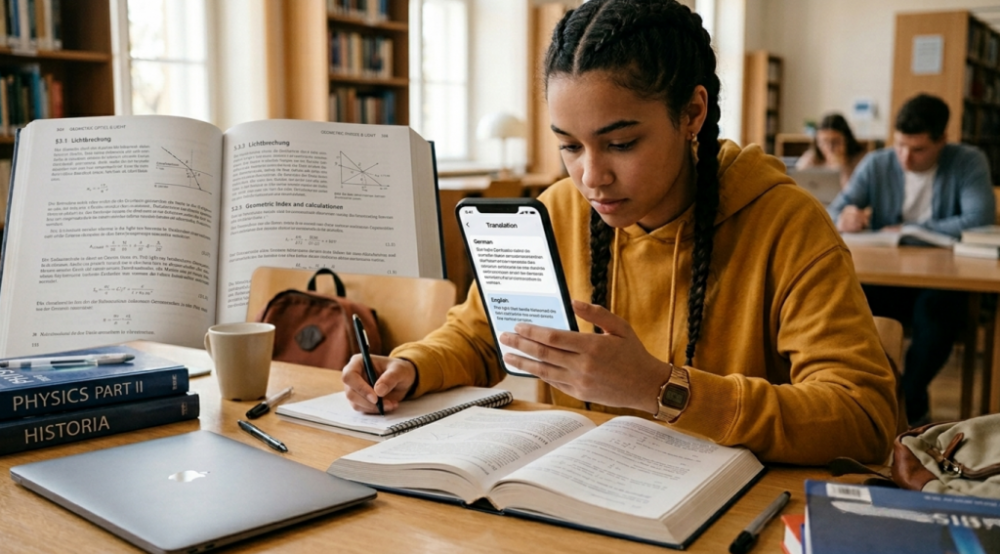
Have you ever stared at a homework worksheet in a language you couldn’t read? Or found the perfect research source, only to realize the text was trapped inside a scanned image you couldn’t copy or paste?
This is a real problem for millions of students — especially those juggling second languages or studying in multilingual environments. UNESCO’s education data shows over 258 million children and youth are out of school globally, and language barriers play a bigger role than most people realize, even for those who do attend.
So what’s the fix? Photo translation.
Today’s photo translation tools combine optical character recognition (OCR) with machine translation to pull text out of images and convert it into whatever language you need — in seconds. Work that used to take hours of flipping through dictionaries now happens almost instantly.
In this guide, we’ll break down how the technology actually works, walk through the best tools available, and show students exactly how to use photo translation to get more out of their homework without cutting corners.
What Is Photo Translation Technology?
Photo translation is really two technologies working together:
1. OCR (Optical Character Recognition) This is what lets software “read” an image. OCR has been around since the 1920s and has improved dramatically — modern versions can read printed or handwritten text with over 99% accuracy in good conditions.
2. Machine Translation Once the text is extracted, systems like Google’s Neural Machine Translation step in to convert it into your target language, doing their best to keep the meaning intact rather than just swapping words.
Put them together and the process is simple: upload a photo, get translated text back. That’s really all there is to it.
Why Students Actually Need These Tools
Language barriers show up in education in more ways than people expect.
- Foreign Language Classes Students receive worksheets and readings entirely in their target language, often with little support for getting unstuck when they hit something confusing.
- Multilingual Research Projects A student writing about World War II might track down a crucial primary source — in German or Japanese. Without a way to translate it, that source is basically useless.
- International Exchange Programs Exchange students deal with local-language materials every single day while they’re still building fluency. The Institute of International Education reports over 1.5 million international students study in the US alone, and most need some form of translation support.
- Non-Editable PDFs and Print Textbooks A lot of course materials are still distributed as scanned, non-editable files. You can’t copy-paste text from them — which means photo translation becomes the only practical option.
- Students with Learning Disabilities Being able to read content in their native language first, then compare it to the target language, can make a significant difference in comprehension and confidence.
How It Actually Works (Without Getting Too Technical)
The OCR Side:
- The software first cleans up your image — adjusting contrast, fixing skew, reducing noise
- It then scans for text regions, separating words from photos or diagrams
- Character recognition happens next, using pattern recognition trained on millions of text samples
- Finally, it assembles those characters into readable words, sentences, and paragraphs
The Translation Side:
Once text is pulled from the image, it goes into a neural machine translation engine. Tools like Google Translate or DeepL are trained on billions of translated sentence pairs, which is why their output tends to sound fairly natural rather than robotic.
What affects quality the most:
- How sharp and clear your photo is (resolution matters a lot)
- The font and size of the text (standard fonts beat decorative ones)
- The language pair (English↔Spanish is much stronger than rarer combinations)
Comparing the Main Tools
1. Google Translate (Mobile App) Free | 130+ languages
Works great for real-time camera scanning and covers more languages than almost anything else. Offline mode is available, which is handy. Main downsides: the photo feature is mobile-only, and Google does store data.
Best for: General everyday translation, on-the-go scanning
2. Microsoft Translator Free | 70+ languages
Good if you’re already in the Microsoft ecosystem — it integrates with Office and syncs across devices. It also has a conversation mode that works well for group settings. Not as accurate as Google for complex texts, and the language selection is smaller.
Best for: Students using Windows or Microsoft 365
3. DeepL Translator Free (limited) | Pro from $8.74/month | 33 languages
If translation quality is the priority, DeepL is hard to beat — especially for European languages. The output sounds genuinely natural rather than translated. Downside is the limited language range and no dedicated mobile OCR feature.
Best for: High-quality translations, particularly European languages
4. PhotoTranslator.net Free | 80+ languages
Browser-based, no login needed, and it handles batch uploads of up to 3 images at once. It’s newer than the big players, but works on any device and has a strict zero data retention policy, which matters for privacy-conscious users.
Best for: Quick homework translations, students who don’t want to download apps
5. Yandex Translate Free | 100+ languages
Strong for Russian and Eastern European languages specifically. Free to use with image translation included. Data privacy is a concern for some users since it’s a Russian company.
Best for: Russian, Ukrainian, or Central Asian language work
Comparison Table:
| Tool | Languages | Batch Upload | Privacy | Best Use Case |
| Google Translate | 130+ | No | Low | General purpose |
| Microsoft Translator | 70+ | No | Medium | Microsoft users |
| DeepL | 33 | Documents only | High | Quality > quantity |
| PhotoTranslator.net | 80+ | Yes (3 images) | Very High | Quick web-based tasks |
| Yandex | 100+ | No | Low | Russian languages |
Step-by-Step: Translating a Homework Worksheet
Here’s a practical example — translating a French worksheet into English.
- Step 1: Take a Good Photo Clear, well-lit, in focus. No shadows, no glare, text as straight as possible. Higher resolution always helps.
- Step 2: Pick Your Tool For this walkthrough, a web-based option works well since it needs no login.
- Step 3: Upload the Image Most tools let you drag and drop, browse files, or in some cases upload a few images at once. PNG, JPG, and WebP formats are universally accepted, usually up to 10MB.
- Step 4: Let OCR Do Its Thing Processing usually takes 5–15 seconds depending on how much text is in the image.
- Step 5: Select Your Target Language For French→English, just pick English from the dropdown.
- Step 6: Review the Output Read both versions side by side. Copy what you need, and always double-check any terms that seem off. Don’t just trust the output blindly.
Real Examples from Real Students
Maria, 11th Grade — AP Spanish
Maria was struggling with complex literary passages for AP exam prep. She started photographing practice texts, comparing the translation to the Spanish original, and using that comparison to build her vocabulary. Her practice scores went from 65% to 88%.
James, College Freshman — History Thesis
James needed German primary sources from 1930s newspapers for his thesis. Using image translation, he was able to work with scanned clippings that would otherwise have been off-limits. He incorporated 12 German sources and finished his thesis 40% faster.
Chen, 9th Grade — ESL Student
Chen had recently moved from China and was still building English fluency while taking science classes. He’d photograph board notes, translate them to Chinese for homework review, then re-translate back to English for practice. He kept a B+ average through the transition.
Privacy — What You Should Actually Know
Not all tools treat your data the same way.
Google and Microsoft store images temporarily and may use them to improve their services. If your account is linked, that usage gets tied to your history.
Privacy-first tools process images in memory only and delete them immediately after — no database, no account, nothing stored.
What to avoid uploading regardless of tool:
- Personal addresses or ID numbers
- Private messages
- Anything marked confidential by your school
Teacher and Parent Perspectives
Photo translation isn’t just for students. Educators and parents find valuable applications:
For Teachers:
Multilingual Classroom Support Teachers can quickly translate parent communication into multiple languages, ensuring all families stay informed regardless of language barriers.
Quick Content Checks Language teachers can verify textbook content or worksheets in foreign languages without switching tools or consulting colleagues.
Accessibility Accommodations Provide translation support for ELL (English Language Learner) students without requiring specialized software or services.
For Parents:
Homework Help Across Language Barriers Parents who speak a different language at home can translate their child’s homework instructions to provide meaningful support.
School Communication Access Translate newsletters, permission slips, and school announcements that may only be available in the local language.
Monitoring Academic Progress Understand graded assignments and teacher feedback, even when written in a language the parent is still learning.
How to Use These Tools Well
Do this:
- Compare the original and translated text — that’s where real learning happens
- Verify anything critical with a dictionary or native speaker
- Take the clearest photo you can
- Use translation alongside other study methods, not instead of them
Don’t do this:
- Submit machine-translated writing as your own — that’s plagiarism
- Assume the translation is always right, especially with idioms or cultural references
- Use it as a way to avoid learning the language altogether
- Mass-translate copyrighted materials to get around buying them
Real Limitations Worth Knowing
Handwriting is still tricky. Most tools struggle with messy handwriting, cursive, or stylized fonts.
Complex layouts — text arranged in columns, tables, or around images — can get extracted out of order.
Image quality is the biggest variable. Blurry or poorly lit photos give you unreliable results no matter which tool you use.
Cultural context is something machine translation genuinely can’t handle well. Sarcasm, idioms, domain-specific jargon — these often come out wrong.
Frequently Asked Questions
What is a photo translator?
A photo translator is a tool that uses OCR (Optical Character Recognition) to extract text from images and then uses machine translation to convert it into another language. Popular options include Google Translate, Microsoft Translator, and web-based services.
Are photo translation tools for students accurate?
Accuracy depends on several factors:
- Image quality (clear, high-resolution = more accurate)
- Text complexity (simple sentences = more accurate)
- Language pair (common pairs like English↔Spanish are more accurate than rare combinations)
For homework assistance, accuracy is typically 85-95% for clear images and common languages. Always verify important translations.
Can I translate handwritten homework?
Some tools handle handwritten text, but accuracy drops significantly compared to printed text.Google Translate’s app has the best handwriting recognition currently available.
How many images can I translate at once?
This varies by tool:
- Google Translate: One at a time
- Microsoft Translator: One at a time
- Web-based tools: Some allow batch uploads (2-3 images simultaneously)
Do I need to download an app?
Not necessarily. While Google Translate and Microsoft Translator offer mobile apps, web-based alternatives work directly in your browser without installation.
Is my uploaded photo stored anywhere?
This depends on the service:
- Google/Microsoft: Store images temporarily, may use for service improvement
- Privacy-focused tools: Process in RAM only, immediate deletion after processing
- Always check the privacy policy of any tool you use
What image formats work?
Most tools accept:
- PNG
- JPG/JPEG
- WebP
- Some accept GIF, HEIC, or BMP
File size limits typically range from 5MB to 20MB.
Can I use this for test preparation?
Yes! Photo translation is excellent for:
- Practicing with foreign language texts
- Understanding vocabulary in context
- Comparing original and translated versions to learn grammar
However, using it to cheat on actual exams violates academic integrity policies.
What if the translation seems wrong?
Machine translation isn’t perfect. If results seem inaccurate:
- Try a different tool for comparison
- Check a dictionary for key terms
- Ask a teacher or native speaker
- Use Reverso Context to see how phrases are used in real sentences
Are there free options?
Yes! Many excellent free tools exist:
- Google Translate (free forever)
- Microsoft Translator (free)
- DeepL (free tier available)
- Various web-based services
Can teachers tell if I used photo translation?
If you submit machine-translated work without editing, yes — it often has telltale signs:
- Awkward phrasing
- Missing cultural context
- Literal translations of idioms
- Unnatural word choices
Use translation to understand, then write in your own words.
Conclusion
Photo translation technology has transformed from a technical novelty into an essential educational tool. For students facing language barriers — whether in foreign language classes, international research, or multilingual environments — these tools provide instant access to knowledge that would otherwise remain locked behind language walls.
The key is using photo translation wisely:
- As a learning aid, not a replacement for learning
- To understand the context before writing original work
- To access resources that would be otherwise unavailable
- With awareness of privacy and academic integrity concerns
Whether you choose industry giants like Google Translate and DeepL, or browser-based alternatives like PhotoTranslator.net, the technology is now accessible, free, and powerful enough to make a real difference in your academic success.
The next time you encounter a worksheet, research source, or textbook page in a language you’re still learning, don’t panic. Take a clear photo, choose your tool, and let modern technology bridge the gap while you continue building your language skills.
Remember: Photo translation is a bridge to understanding, not a shortcut around learning. Use it wisely, and it will accelerate your education rather than replace it.