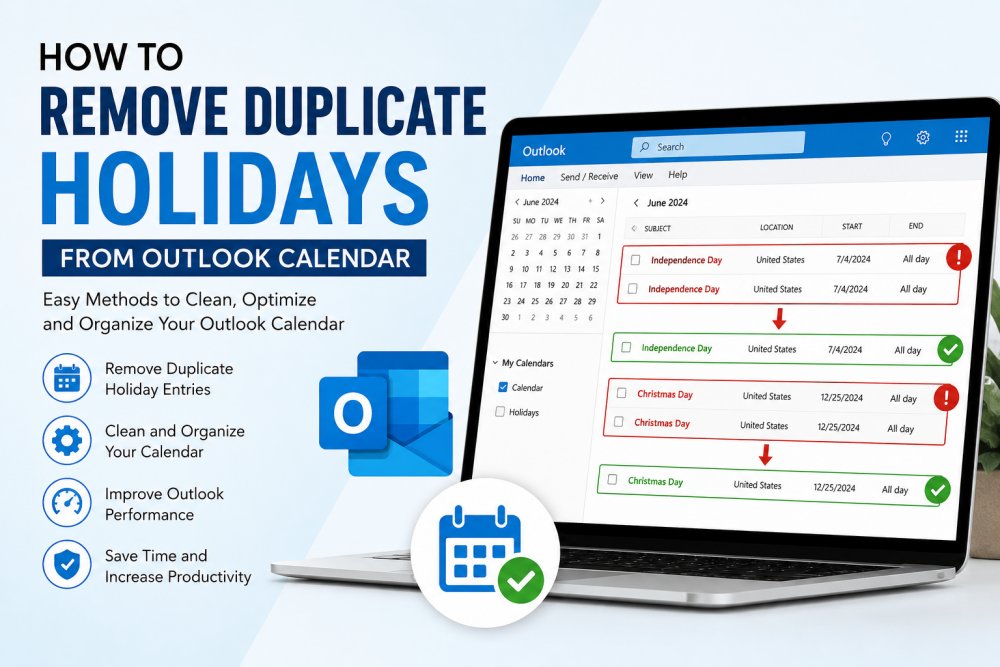
Overview: In this blog, we will guide you on how to remove duplicate holidays from Outlook calendar using both manual and automated solutions.
We all know that MS Outlook is most used email client among many professionals and home users. This helps them to manage and organise their meetings, notifications, and holidays in their calendar. However, due to some syncing issues, restoring backup or importing data file again leads to duplication of holidays in Outlook calendar. Moreover, these redundancies can clutter your calendar and confuse many users.
Thus, it becomes important to delete duplicate holidays in Outlook calendar. So we are going to explain how to fix it and help in managing same.
Why Do Duplicate Holidays Appear in Calendar?
Before anyone dives into solutions, it is essential to understand main causes for recurring holidays. Here are some listed below:
- Uploading data file with holidays many times.
- Syncing Outlook profile with multiple devices simultaneously.
- Manually adding holidays again.
- Transferring data between different Outlook accounts.
If someone added same holiday list again, then Outlook automatically creates duplicate calendar holidays. Let’s walk through advanced solutions.
Manually Delete Duplicate Holidays in Outlook Calendar
This is a free and suitable way for users who have a small number of calendar lists. Understand how this manual approach works to remove duplicate events from Outlook calendar.
Steps:
- Launch your Outlook.
- Go to Calendar tab, then change its default view to List View.
- Now, sort these calendar items using filters such as subject, date, holiday, etc.
- Search for duplicate holidays from Outlook calendar list.
- Choose redundant entries manually and click Delete button.
Pros:
- 100% free
- No installation required
- Good for small calendar list.
Cons:
- Very time taking
- Hard to detect duplicate entries manually
- Not ideal for batch deduplication
How to Remove duplicate holidays from Outlook calendar Professionally
If you are dealing with large and multiple data files that have duplicated calendar holidays, we recommend using an automated tool instead of manually deleting. Download SysTools Outlook Duplicate Remover, which scans and deletes duplicate holidays in Outlook calendar with complete accuracy and security. This can easily bulk remove calendar items from large volume of lists. Also, it deletes duplicates without any data loss and maintains data structure integrity intact. Moreover, it can effectively remove other Outlook mailbox items such as emails, contacts, notes, journal, attachments, tasks, etc. Supports both Windows and Mac operating systems for deep deduplication.
Working of this Automated tool
- Install and run the aforementioned software.
- Upload Data file into system by clicking Add file or folder button.
- Offers dual mode to remove, that is Within and Across folder.
- Select destination path to save resultant file.
- Choose Calendar option from items type tab.
- Apply holiday filter and many more from same.
- Finally, click Next button to start deletion process.
Tips to Avoid Duplicate Holidays in Outlook
After cleaning, one should follow these best practices to prevent orobvelm in future. Let’s quickly go through.
- Always clean your Outlook files.
- Keep backup of your data before making any changes.
- Do not import Outlook calendar list again.
- Try not to configure same account on many devices.
- Lastly, use expert certified software like SysTools.
Conclusion
These duplicate holidays in Outlook calendar can easily confuse any user. So, for that, we have discussed how to remove duplicate holidays from Outlook calendar using simple solutions, which include both professional and manual methods. We recommend using dedicated software can save you both time and effort and gives complete accurate results.