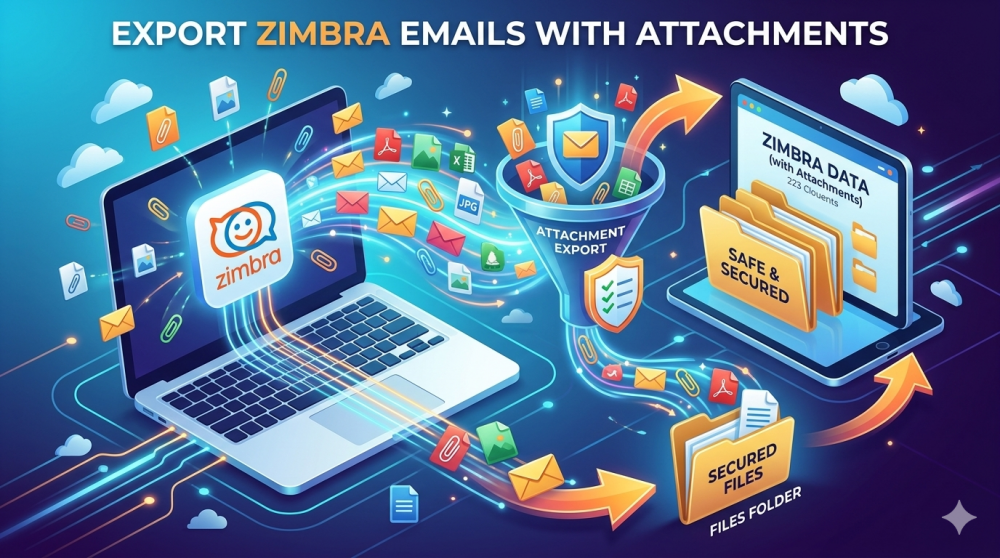
Through this guide, you will get different methods to export Zimbra emails with attachments. You will cover the section related to the reason part, manual, & professional way to make this process very easy.
Email is an important aspect of data both for people and businesses sectors. Many users are required to export their Zimbra emails with their attachment. This is done to take backup, migrate data, or to transfer to another email client. But, it becomes difficult to handle large mailboxes with multiple folders and attachments inside it.
Also Read: Import Zimbra to Thunderbird
What is Zimbra Mail?
It is a popular email client which is preferred by business, school, or any organization. It helps users to manage emails, contacts, calendars, tasks, and other properties. Stores mailbox data in TGZ file format. Most of the users usually extract their emails into PST, EML, MBOX, PDF formats, so that they can open & access emails in other platforms.
Why Users Migrate Zimbra TGZ Files?
So, users export Zimbra emails with attachments for many reasons.
- Most of the users migrate from Zimbra to Outlook, Thunderbird, or Gmail
- Exported emails can be seen at any time, or even access it offline
- To avoid any sudden system crash, and save your mailbox data
- Emails are kept for various needs like meeting compliance needs
- Cleaning old emails also reduces size and helps to increase performance
Common Challenges Users Face:
Below are some common challenges which users face while exporting:
- Missing some attachments during process
- Export fails for large mailboxes
- TGZ files are corrupt
- Folder structure changes
- You will see duplicate emails
- Time taking process
- No way to export transferred values only
The process is very hard for non-technical users.
Export Zimbra Emails with Attachments – Manual Steps
There are three methods to migrate your Zimbra emails. Let’s take a look into it:
#1. Migrarte Zimbra Files Using Web Client
You can go with this method to easily export your ZImbra emails.
- Log in to your Zimbra Web account.
- Open the Preferences tab
- From the left, Click on Import/Export
- Go to the Export section
- Select Mail as the account type
- Now, you need to select the folders which needs to be exported
- Click the Export button
- In Zimbra when you create a backup of your mailbox, it will be saved in a TGZ format
The TGZ File has:
- Emails
- Attachments
- Folder structure
Limitations:
- Only export in TGZ format
- Do not convert directly
- Can’t handle large export
- No advanced filter option
#2. Export Zimbra Emails One by One
If users have few emails, then they can go manually.
- Open the Zimbra mailbox
- Select the email of your choice
- Click More options.
- Choose Download .eml
- Finally, save the file locally
Drawbacks:
- Suitable only for a few emails
- Very time taking for bulk export
- Manual repetition of steps
- Not good for organization level work
#3. Use Desktop Email Client
Some users setup Zimbra account in Email clients such as:
- Mozilla Thunderbird
- Microsoft Outlook
After configuring, users can export emails
- Configure a Zimbra account using IMAP
- Sync mailbox data locally
- Export emails into required formats
Problems with this Method:
- Slow syncing process
- Risk of incomplete download
- Attachment corruption issues
- Requires technical configuration
- Takes significant storage space
Smart Way to Export Zimbra Emails with Attachments
Most users first opt for manual export approach, but it comes with certain limitations like missing attachments, unclickable folders, duplicate emails, and difficult to open TGZ files in Microsoft Outlook. Manual methods are useful for less data, however, SysTools Zimbra Converter is best to export and manage Zimbra emails with attachments. All your folders are in an organized way without any kind of data loss.
Conclusion
If you want to export Zimbra emails with attachments, simply have two options. First, if you have a few emails with limited attachments, then go with our manual steps. Do not try with bulk export data as this has limitations which can be difficult to perform. It is suitable to go with our professional tool. It can quickly export emails, maintains attachments intact and manages large data nicely.