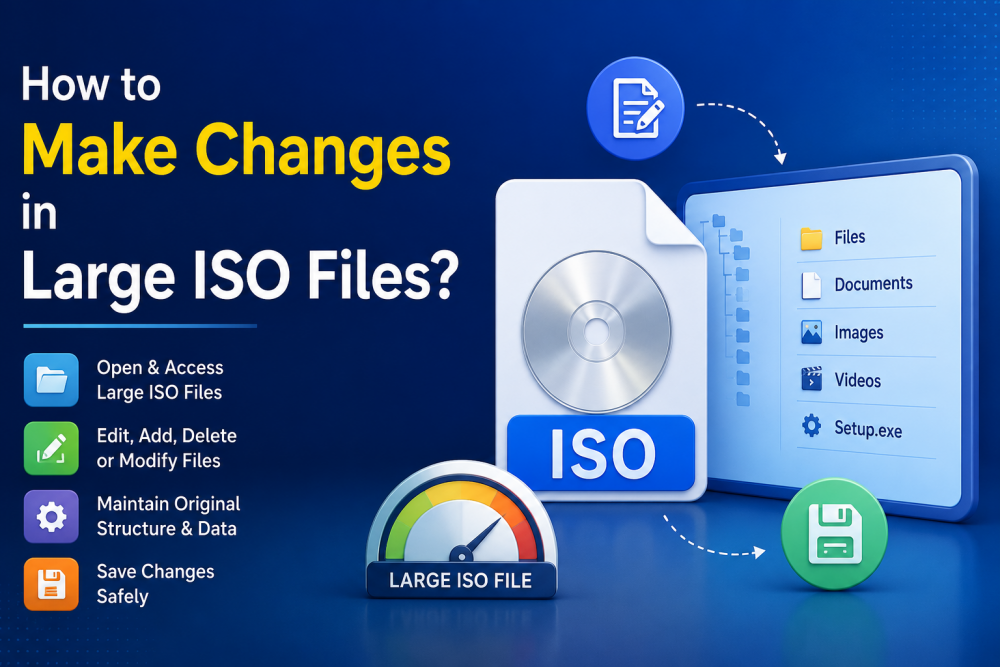
Overview: This tutorial will give you information about how to make changes in large ISO files. Discuss various manual methods, and go through a professional solution to easily edit the process.
The ISO file format is popular for storing all kinds of OS software, applications, backups, game discs and many other files too. Using these files, you can maintain the structure of your original disk and share easily. However, many users find it difficult to manage large ISO files when they need to update or do any kind of editing, or removing unneeded data from the ISO file.
Also Read: Create ISO from Files & Folders
What Actually is an ISO File?
It is a complete copy or you can say digital replica of a physical disk. It generally has:
- Files and folders
- Booting instructions
- Directory structure
- Metadata about the disk
Need to Modify ISO Files – Key Aspects
There is a reason why users need to make changes in their ISO files.
- Organizations tend to modify their ISO images for updating their drivers, patches or software versions
- Large ISO files usually has language packs or files that are out of date or not needed any more
- IT Administrators often customize the ISOs to include tool sets, configurations and other software
- Remove unnecessary files to reduce the overall size and storage requirements for using the ISO image
- Users may also need to modify archive ISO files before restoring or sharing its copies
Manual Methods to Make Changes in Large ISOs
Follow these two manual steps to modify or update your ISO files.
#1. Extract, Edit, & Create ISO Files
This is one of the simple and most used methods.
Step 1. First, extract ISO Files
These are some of the extraction tools which you can use to extract the contents of the ISO file to a local directory. You will find on the search web like 7-Zip, WinRAR, or any pre-installed ones in your system.
Step 2. Making Necessary Edits
After that, follow this four quick pointers:
- Include new files if you want
- Remove any unnecessary data
- Make changes to your old files
- Double check your folder structure
Step 3. Create a New ISO
For that, there are some online tools like ImgBurn, PowerISO, and various command line methods. Rather than this, you can use our professional tool which we will pitch in the coming section.
Disadvantages:
- No space requirement
- Very time taking for large ISO images
- Chances of configuration mistakes
- Boot settings not saved correctly
#2. Access, Modify, & Rebuild ISO Content
Most users try to mount their ISO first. These are the steps to do it:
- Mount ISO file
- Copy files to local directory
- Modify files
- Create ISO file again
Benefits:
- No need for technical expertise
- Simple process when using small ISO files
Drawbacks:
- Very time consuming process when handling large files
- Manual steps involved
- Errors likely to be occurred
Common Problems While Editing Large ISOs
These are some of the difficulties which users face generally when dealing with disk image files.
- If you extracted a 20 GB ISO file, then it can take up to 40 GB or more of free spaceIt
- can create corrupted ISO files too
- Boot sectors are not managed properly
- Huge ISO files need plenty of time to process
- Certain system files may not copy successfully while extracting
Professional Way to Make Changes in Large ISO Files
Lots of time, users waste their time in extracting large ISO files, making changes, and rebuilding them. It takes up additional storage, potential mistakes, and makes the editing of ISO much more complicated.
While manual steps are very confusing and not direct. So, we give you a direct way to edit, remove data from ISO files without much steps. It is well within the software and well secured. Use our SysTools ISO Editor to quickly make changes in seconds. This makes the editing work simple and allows you to use large ISO files with ease.
Best Practices:
Stick to the following suggestions for error-free editing.
- Keep the original ISO file with you all the time
- Ensure there is sufficient free disk space
- Check the proper functionality before editing
- Avoid unnecessary structural changes
- If using installation media, confirm it still boots afterward
Conclusion
Manual approaches tend to take up additional time, and more space after editing. It is a very complex and not durable approach. If you have a big or bootable ISO ahead of you. It is advised to use our smart solution for your ISO files. It allows users to add, remove, and handle contents in a better way without putting data on risk. You can easily manage your content in the proper manner and minimize errors much more quickly.